
Appearance
Event Based Features
Below features are triggered by a specific event. All features are Team based. Some features are only applicable to a user's Main Team (the first registered Team), see Notification Targets for details.
WARNING
- Features can be configured by instructions here
TIP
Please also refer to Commands & Examples blade for command based features.
You can get to know about country code here: https://en.wikipedia.org/wiki/ISO_3166-1_alpha-2#Officially_assigned_code_elements.
Case Assignment Notification
WARNING
- For VDM assignment notification, this feature is based on CRMGlobal assignment emails, so by default it is turned off for VDM Assignment. For turning on, please refer to instructions here.
- If there is an issue in CRMGlobal assignment email notification system, i.e. delay or no email notification, the notification from this Bot is impacted as well.
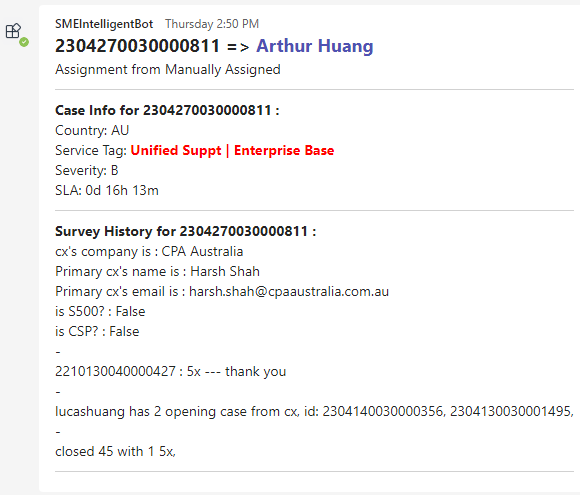
Description: When an assignment happens, Bot will notify with necessary information like Service Level, SLA, Survey History, to the Teams chat.
Triggered by:
- Built-in assignment command (using the assignment feature within this Bot)
- VDM Assignment
Enabled by Default?:
- VDM assignment notification:
False. See below instructions for enabling. - Built-in assignment notification:
True
Notification Targets: The engineer assigned, and all TA role from the Main Team of assigned engineer.
Samples:
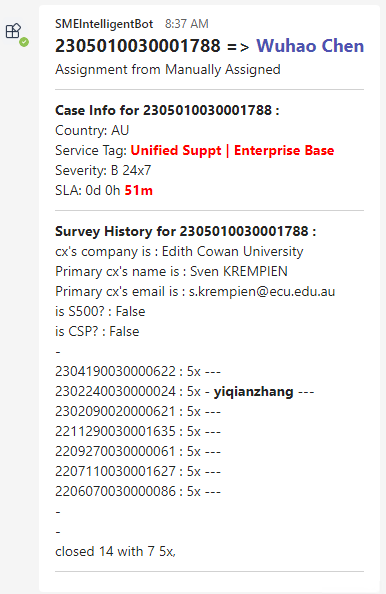
How to enable notification for VDM Assignment?
TIP
Below instructions are for SBAManager, which is a new cloud instance of VDM.
SBAManager and CRMGlobal are 2 different platforms and they don't use the same notification system. Please subscribe notification on the platform that your Org is currently using for assignment.
In brief, you will need to subscribe to SBAManager email assignment notification for all your engineers, and then forward the notification emails to the Bot, so that the Bot can know there are assignments happening and trigger further workflows. Here's what you need to do:
Go to SBAManager, Switch to
VDMon the top, and change toCollaborationtab on the bottom left. Select Resource under Resources section, and search for the engineer you want to subscribe, then click into the record.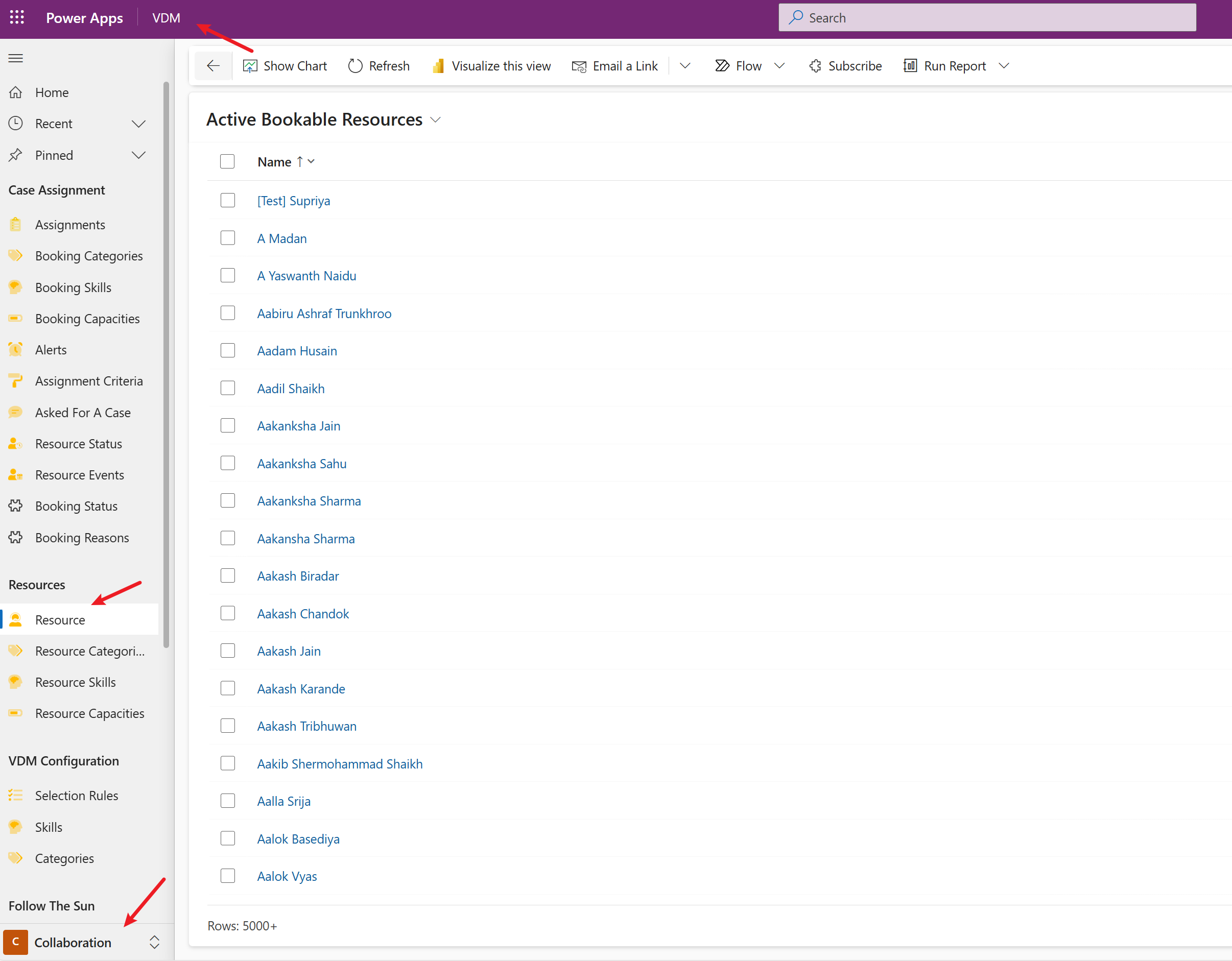
Click on "SUBSCRIBE" on the top menu bar, and add email notification as below instructions.
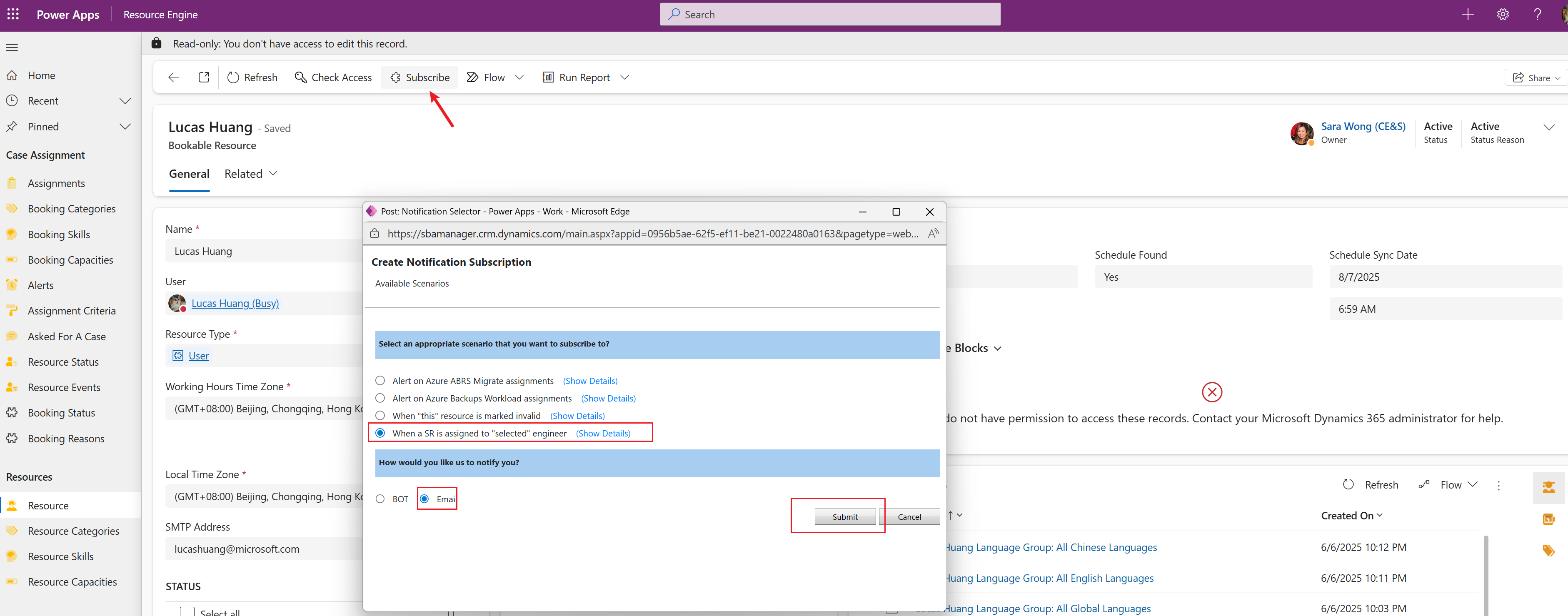
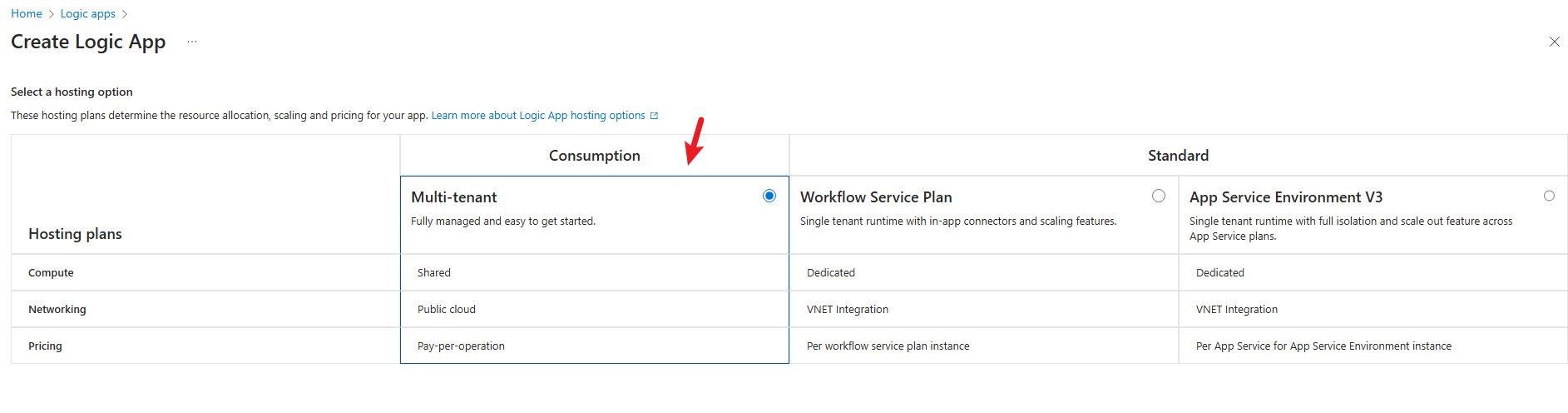
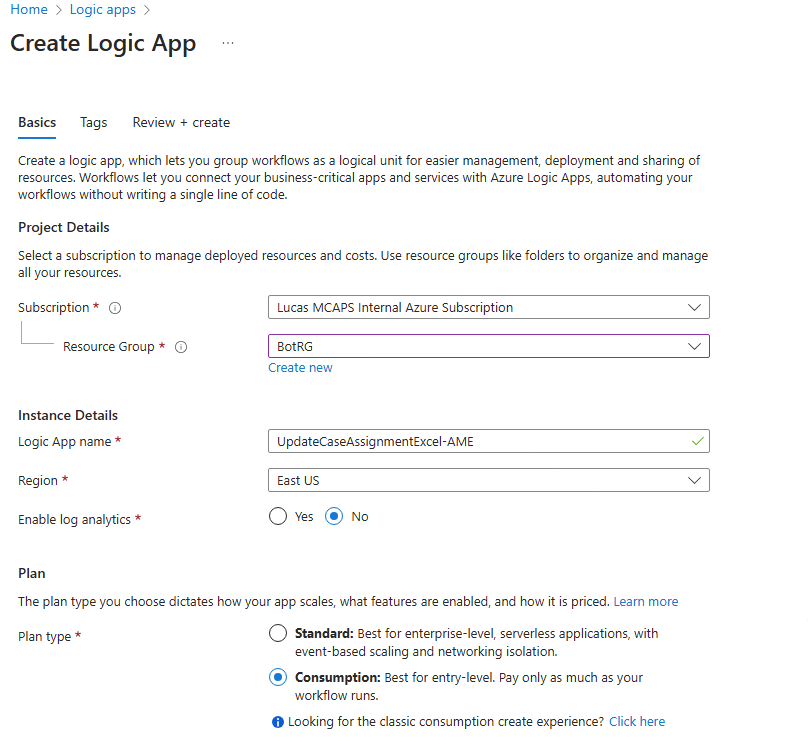
Now we have successfully subscribed email assignment notification from SBAManager. From now on you will receive an email when an assignment happens to the engineer. We will then configure a workflow to automatically forward this email to Bot so that Bot can know. Go to Azure Portal and create a Logic App with below setting.
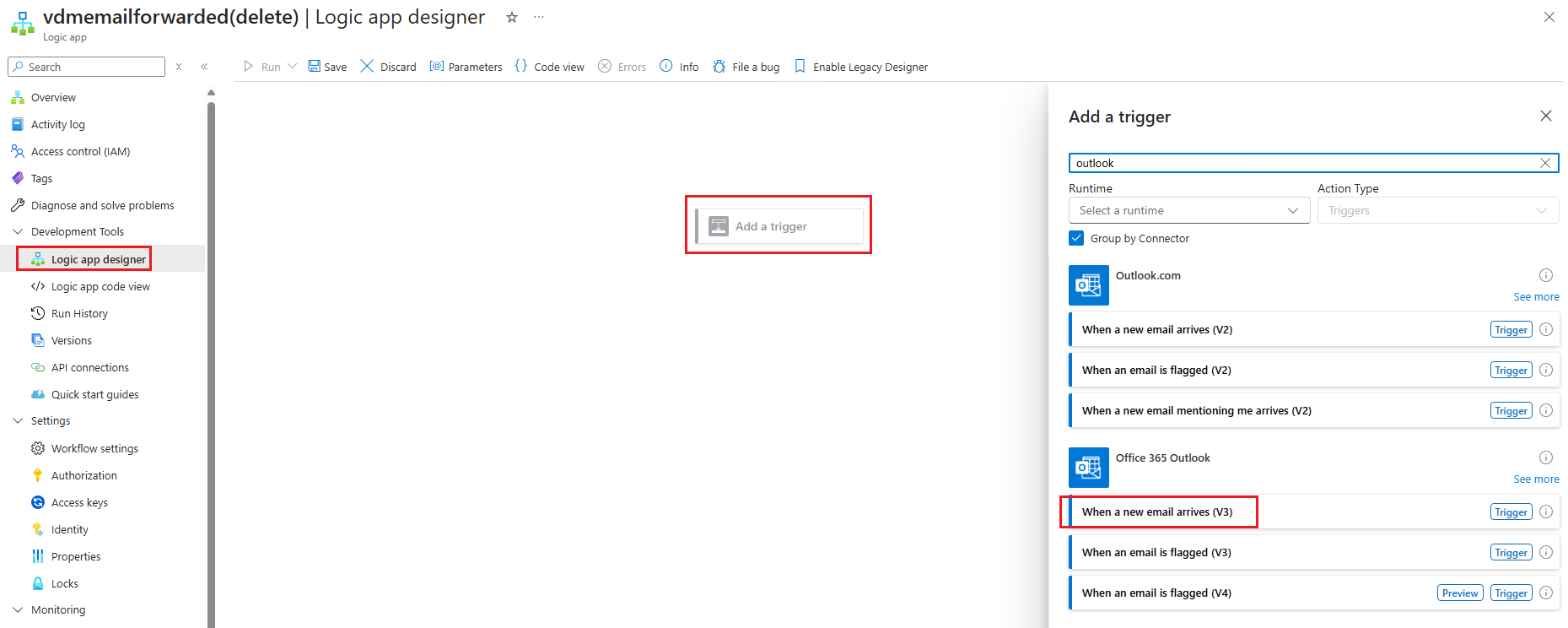
Go to Logic App designer, create a "When a new email arrives" Trigger under Office 365 Outlook .
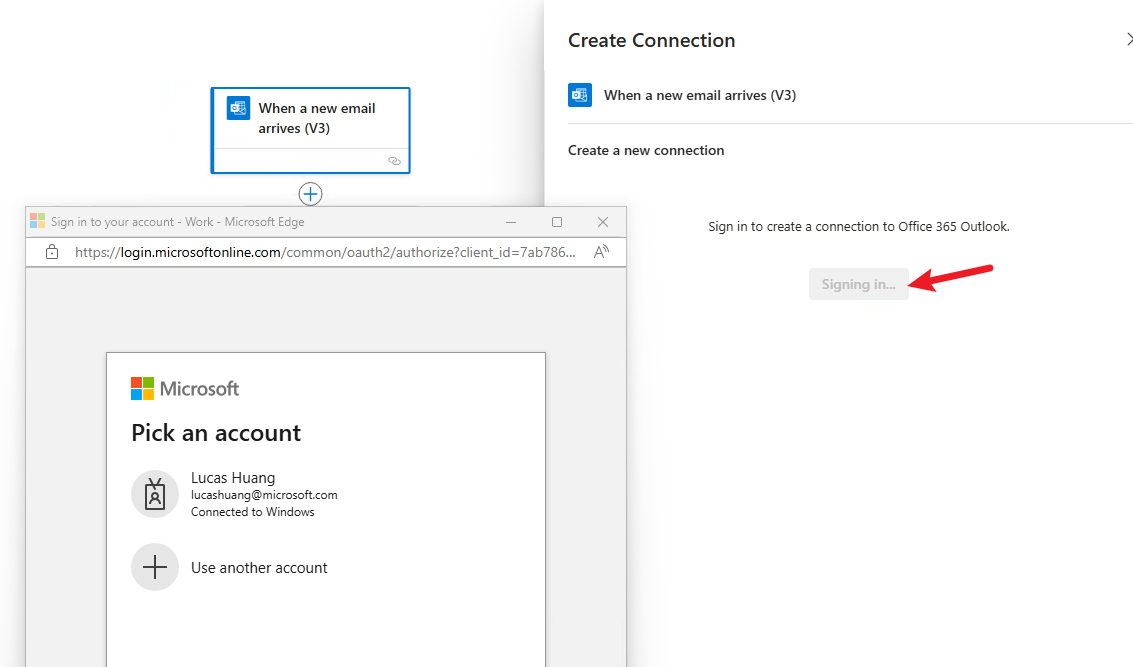
Click "Sign in" and finish authentication, so that an API Connection gets created. No need to fill in any contents after authentication.
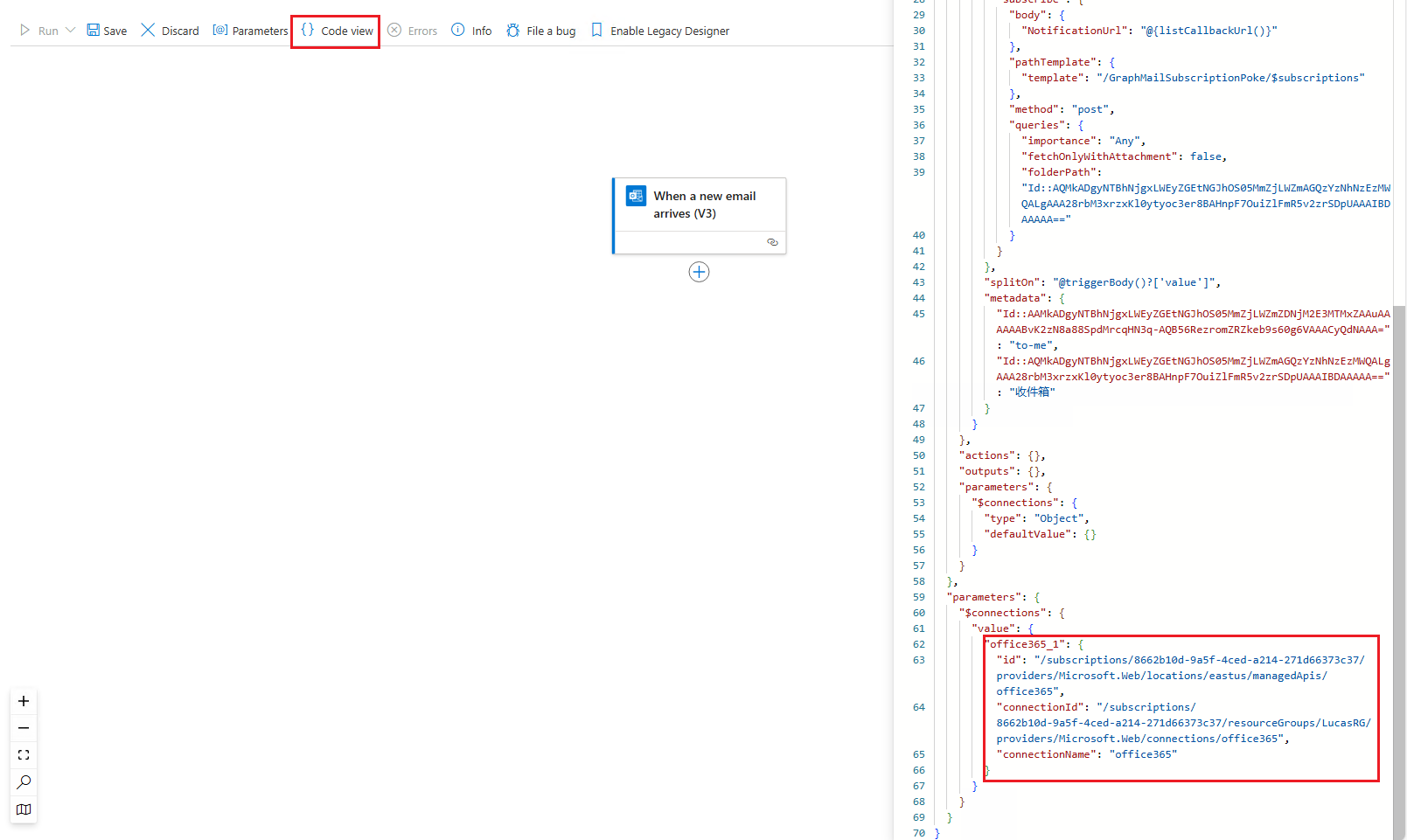
Click Code View, and copy the "office365" connector details at the bottom.
Go to Logic App Code View on the left navigation panel, remove all existing contents and replace with below details
Logic App Code Template:
json{ "definition": { "$schema": "https://schema.management.azure.com/providers/Microsoft.Logic/schemas/2016-06-01/workflowdefinition.json#", "contentVersion": "1.0.0.0", "triggers": { "When_a_new_email_arrives_(V3)": { "type": "ApiConnectionNotification", "inputs": { "host": { "connection": { "name": "@parameters('$connections')['office365']['connectionId']" } }, "fetch": { "pathTemplate": { "template": "/v3/Mail/OnNewEmail" }, "method": "get", "queries": { "from": "crmgnotify1@microsoft.com;crmgnotify2@microsoft.com;crmgnotify3@microsoft.com;crmgnotify4@microsoft.com;crmgnotify5@microsoft.com;sbamanager@microsoft.com;", "importance": "Any", "fetchOnlyWithAttachment": false, "includeAttachments": false, "subjectFilter": "VDM has assigned", "folderPath": "Id::AQMkADgyNTBhNjgxLWEyZGEtNGJhOS05MmZjLWZmAGQzYzNhNzEzMWQALgAAA28rbM3xrzxKl0ytyoc3er8BAHnpF7OuiZlFmR5v2zrSDpUAAAIBDAAAAA==" } }, "subscribe": { "body": { "NotificationUrl": "@{listCallbackUrl()}" }, "pathTemplate": { "template": "/GraphMailSubscriptionPoke/$subscriptions" }, "method": "post", "queries": { "importance": "Any", "fetchOnlyWithAttachment": false, "folderPath": "Id::AQMkADgyNTBhNjgxLWEyZGEtNGJhOS05MmZjLWZmAGQzYzNhNzEzMWQALgAAA28rbM3xrzxKl0ytyoc3er8BAHnpF7OuiZlFmR5v2zrSDpUAAAIBDAAAAA==" } } }, "splitOn": "@triggerBody()?['value']", "metadata": { "Id::AAMkADgyNTBhNjgxLWEyZGEtNGJhOS05MmZjLWZmZDNjM2E3MTMxZAAuAAAAAABvK2zN8a88SpdMrcqHN3q-AQB56RezromZRZkeb9s60g6VAAACyQdNAAA=": "to-me", "Id::AQMkADgyNTBhNjgxLWEyZGEtNGJhOS05MmZjLWZmAGQzYzNhNzEzMWQALgAAA28rbM3xrzxKl0ytyoc3er8BAHnpF7OuiZlFmR5v2zrSDpUAAAIBDAAAAA==": "收件箱" } } }, "actions": { "Send_an_email_(V2)": { "type": "ApiConnection", "inputs": { "host": { "connection": { "name": "@parameters('$connections')['office365']['connectionId']" } }, "method": "post", "body": { "To": "smebotvdmemailparser@microsoft.com", "Subject": "FW: @{triggerBody()?['subject']}", "Body": "<p>@{triggerBody()?['body']}</p>", "Importance": "Normal" }, "path": "/v2/Mail" }, "runAfter": {} } }, "outputs": {}, "parameters": { "$connections": { "type": "Object", "defaultValue": {} } } }, "parameters": { "$connections": { "value": { "office365": { "<your connecter details here>": "" } } } } }Scroll down to the button and replace the "office365" connector details we just copied. Click Save and go back to Logic App Designer.
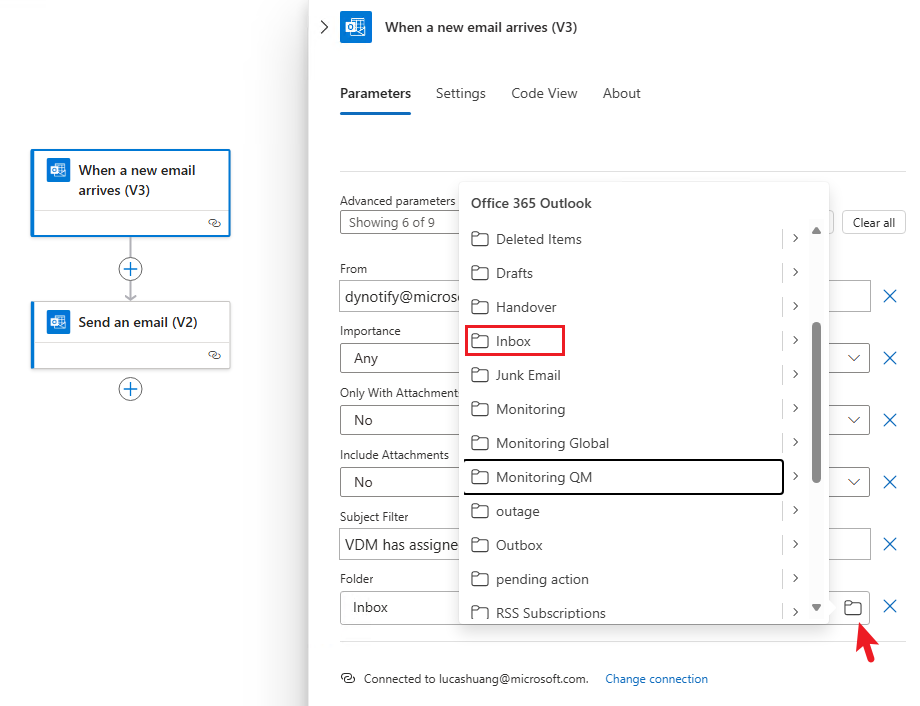
click on the trigger, and select the folder as "Inbox". Click on "Save" after the change.
All done. Now CRMGlobal assignment email will be forwarded to the Bot automatically, and Bot will give you notification for VDM Assignment. Optionally add some custom steps afterwards like move it to a specific folder. Please don't add an outlook rule to move the email as it could cause Logic App not detecting the email.
Survey histories among Team
Description: Lookup for if the same customer has made surveys to engineers among your Team. This could be helpful to find out if this customer needs a dedicated engineer.
Triggered by:
- Survey
- Case Assignment Notification.
Enabled by Default?: True
Notification Targets: NA
Samples:
Opening Cases among Team
Description: Along with survey detail, lookup for if the same customer has opening case within your Team. This could be helpful to find out if this is a seperated/related case, or if this customer needs a dedicated engineer.
Triggered by:
- Survey
- Case Assignment Notification.
Enabled by Default?: False . This feature is enabled automatically by enabling Daily Cases Closure Summary
Notification Targets: NA
Samples:
Contract Warning
Description: Warn if a Team can not take a specific contract case due to policy.
Triggered by:
- Case Assignment Notification.
Enabled by Default?: False
Notification Targets: NA
Samples:
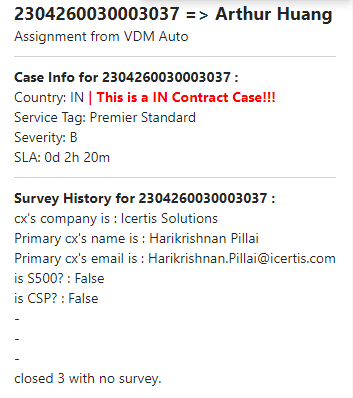
Config:
json
{
   "contractCode":["IN"]
}
Country Warning
Description: Warn if a Team can not take a specific calling country case due to policy.
Triggered by:
- Case Assignment Notification.
Enabled by Default?: False
Notification Targets: NA
Samples:
Config:
json
{
   "countryCode":["IN","US"]
}
Log to Custom Endpoint
TIP
Currently Azure Application Insights is supported.
Only
tracesdata will be exported. Other data types such asrequestsare not supported.
- Description: This feature helps export your Team's activity logs from Bot to your own data service. For example, when a case's SLA is missed but you are not notified by Bot, you may want to check further details about what Bot was doing.
Triggered by:
- Any activities related to your Team.
Enabled by Default?: False
Notification Targets: NA
Samples:
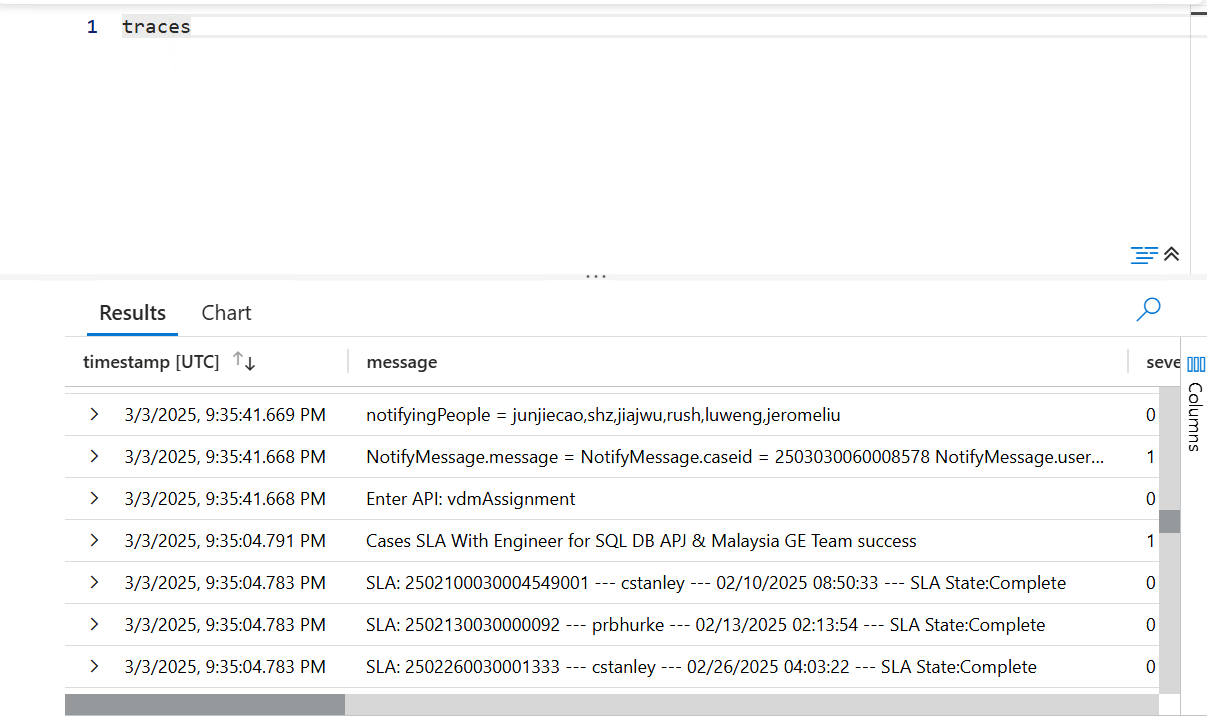
Config:
ApplicationInsights.ConnectionString: The ConnectionString from Application Insights. You can get the ConnectionString from below instructions.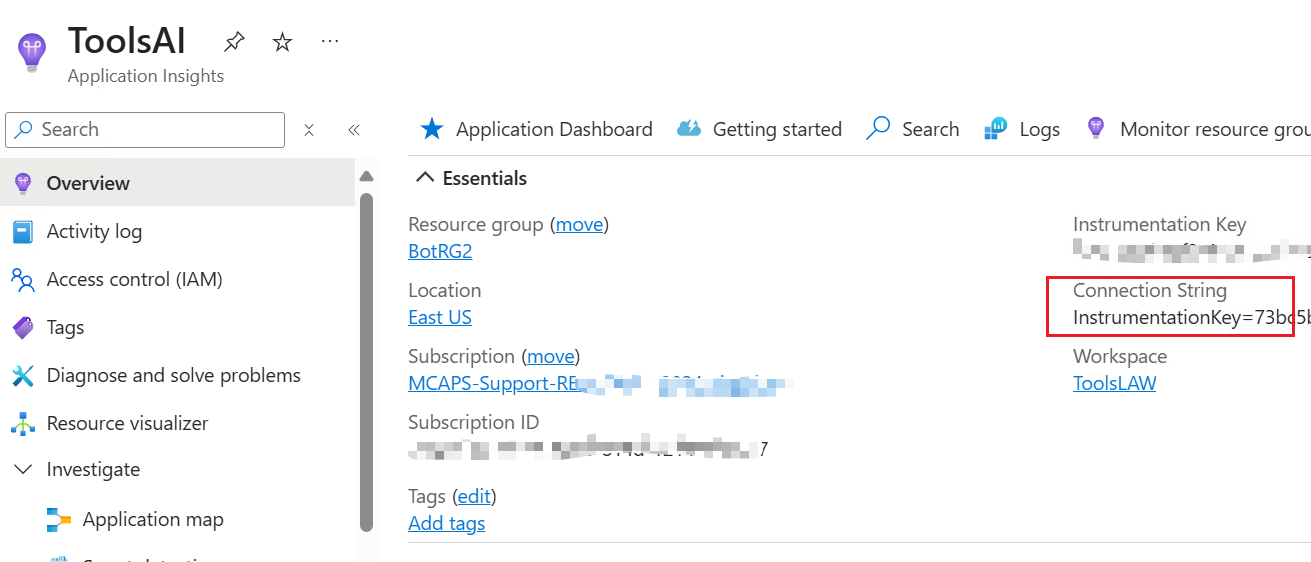
ApplicationInsights.LogLevel: the minimum logging level you want to export. Allowed value:Trace,Debug,Information,Warning,Error. Default toWarning.
json
{
   "ApplicationInsights": {
      "ConnectionString": "InstrumentationKey=73bc5bdf-8cf2-xxxx-xxxx-ecd0e33c58cb;IngestionEndpoint=https://eastus-8.in.applicationinsights.azure.com/;LiveEndpoint=https://eastus.livediagnostics.monitor.azure.com/;ApplicationId=489f1773-xxxx-xxxx-xxxx-002511181566",
      "LogLevel": "Trace"
   }
}
Auto Case Record to Excel Sharepoint
Description: When an assignment happens, take this assignment records to an Excel on Sharepoint.
Triggered by:
- Case Assignment Notification.
Enabled by Default?: False
Notification Targets: NA
Instructions:
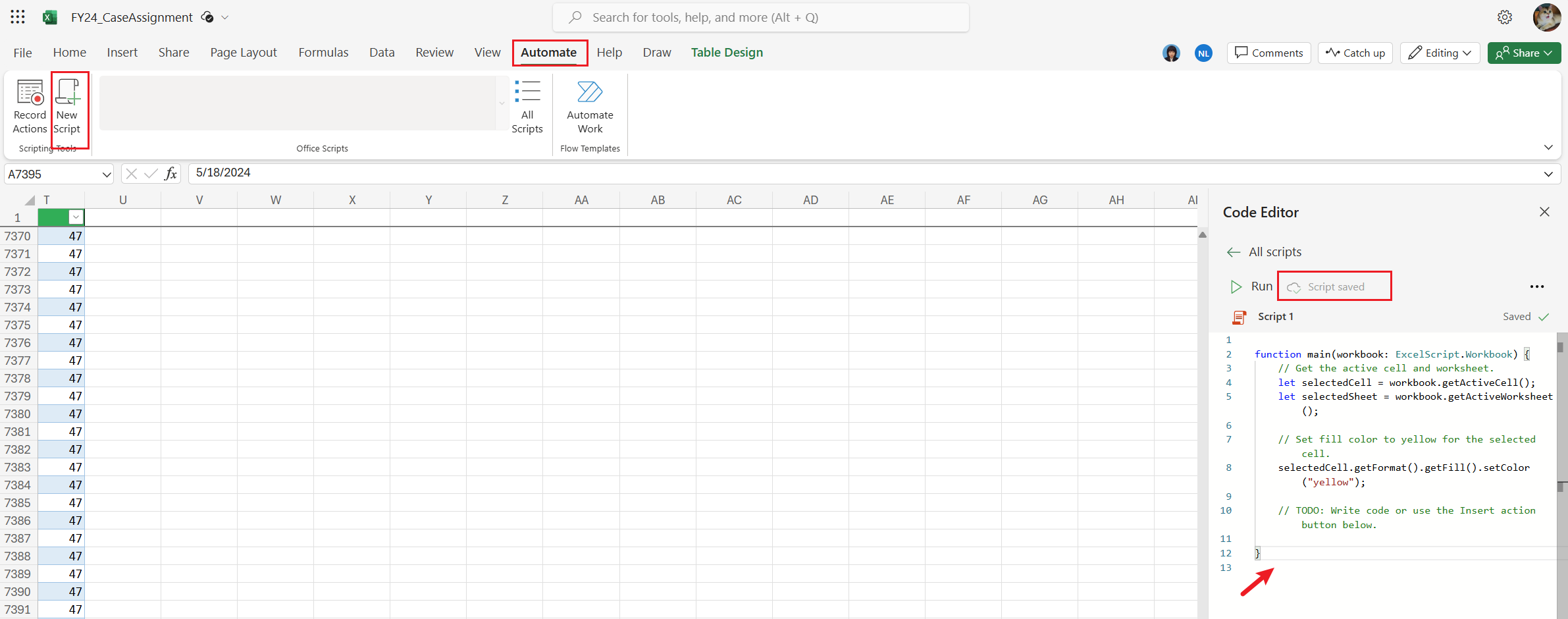
- Please download the template1.zip. Extract the zip file which contains an Excel template and a script.
TIP
- You can customize the script and Excel, but there will be no support for this. Make sure the column names in Excel are the same as in the script.
- You can have a check on the full payload the Bot will send to your script at the end of this section.
Upload the Excel to your sharepoint, and copy-paste the script content as an Office Script like below.
Go to Azure Portal and create a Logic App with below setting.
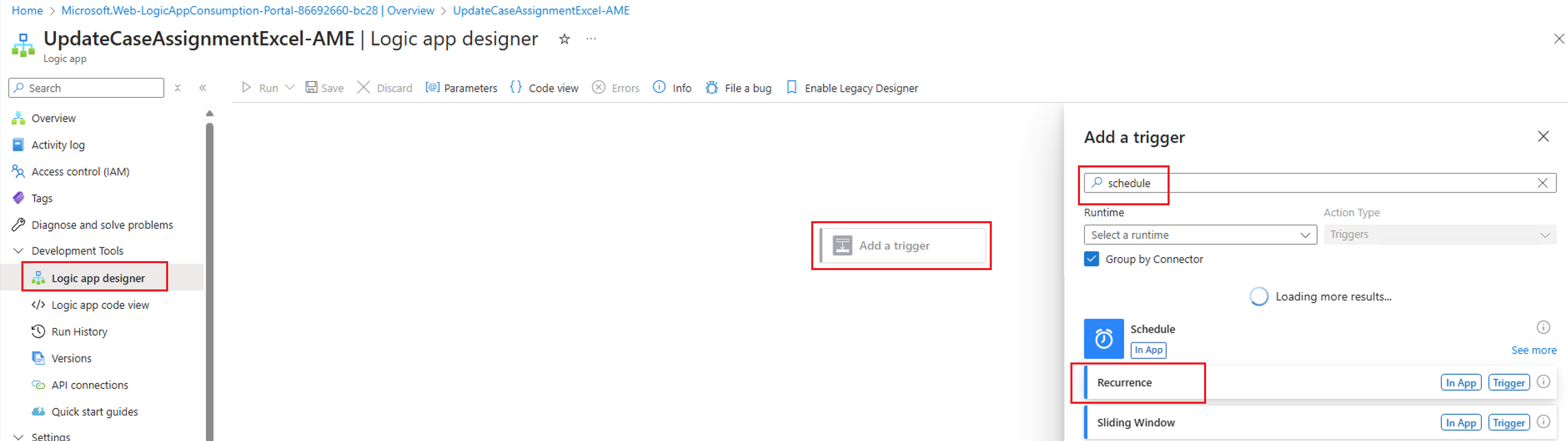
Go to Logic App designer, create a Schedule Trigger.
Add a new step with Excel Online (Business).
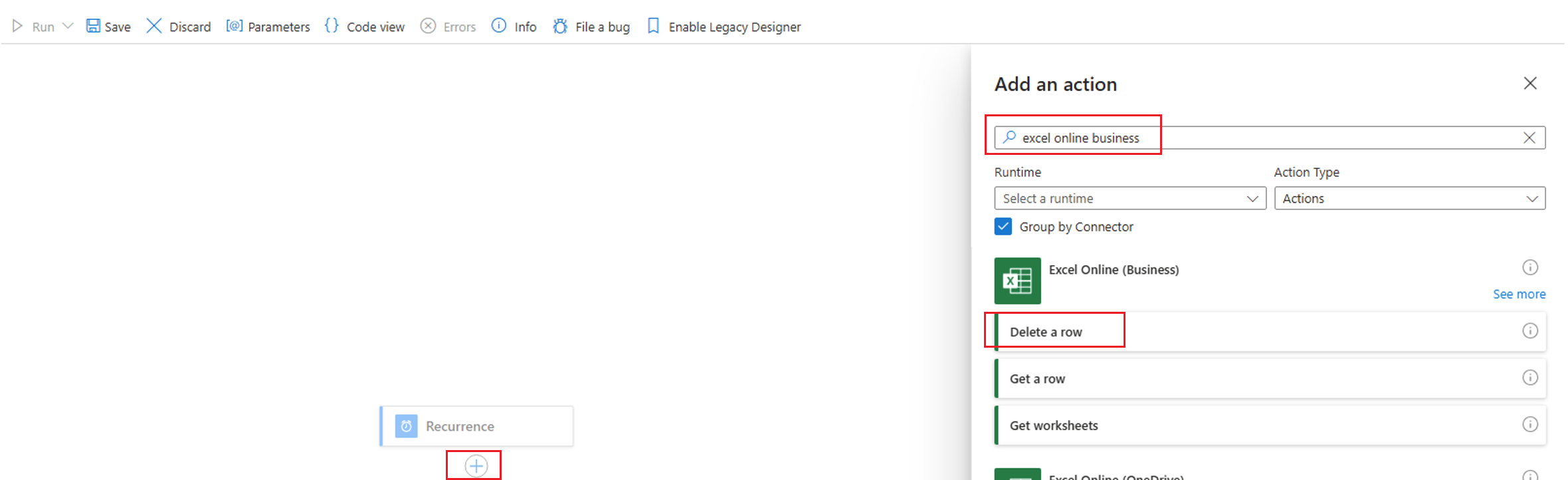
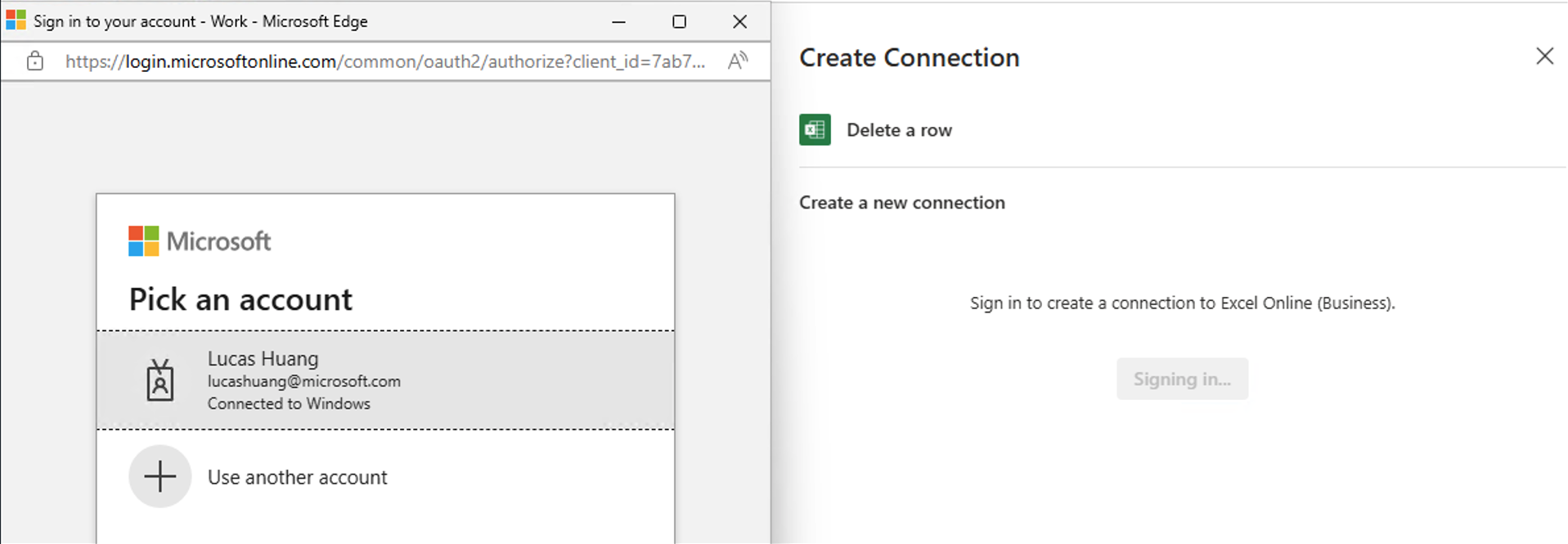
Finish authentication, so that an API Connection gets created. No need to fill in any contents after authentication.
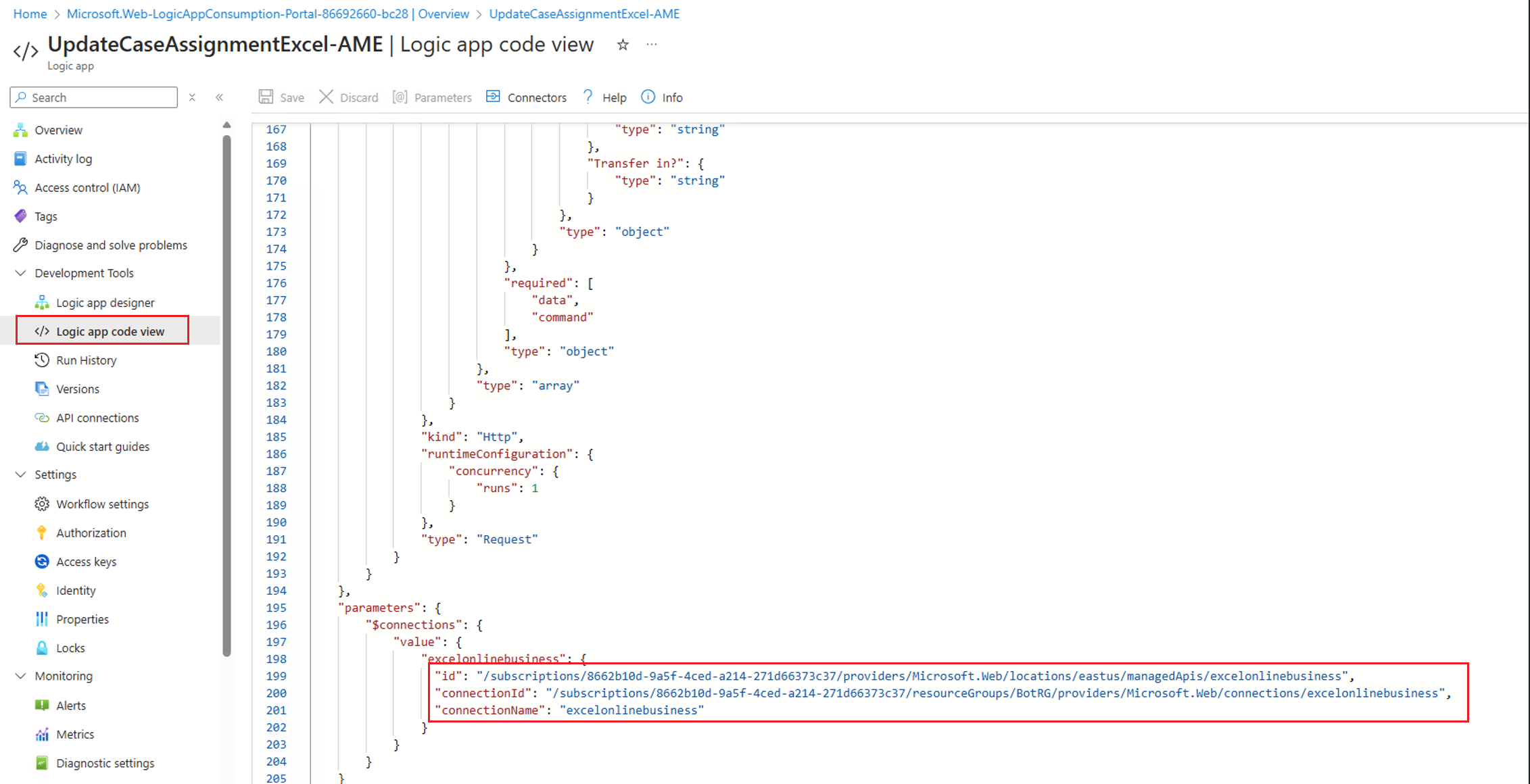
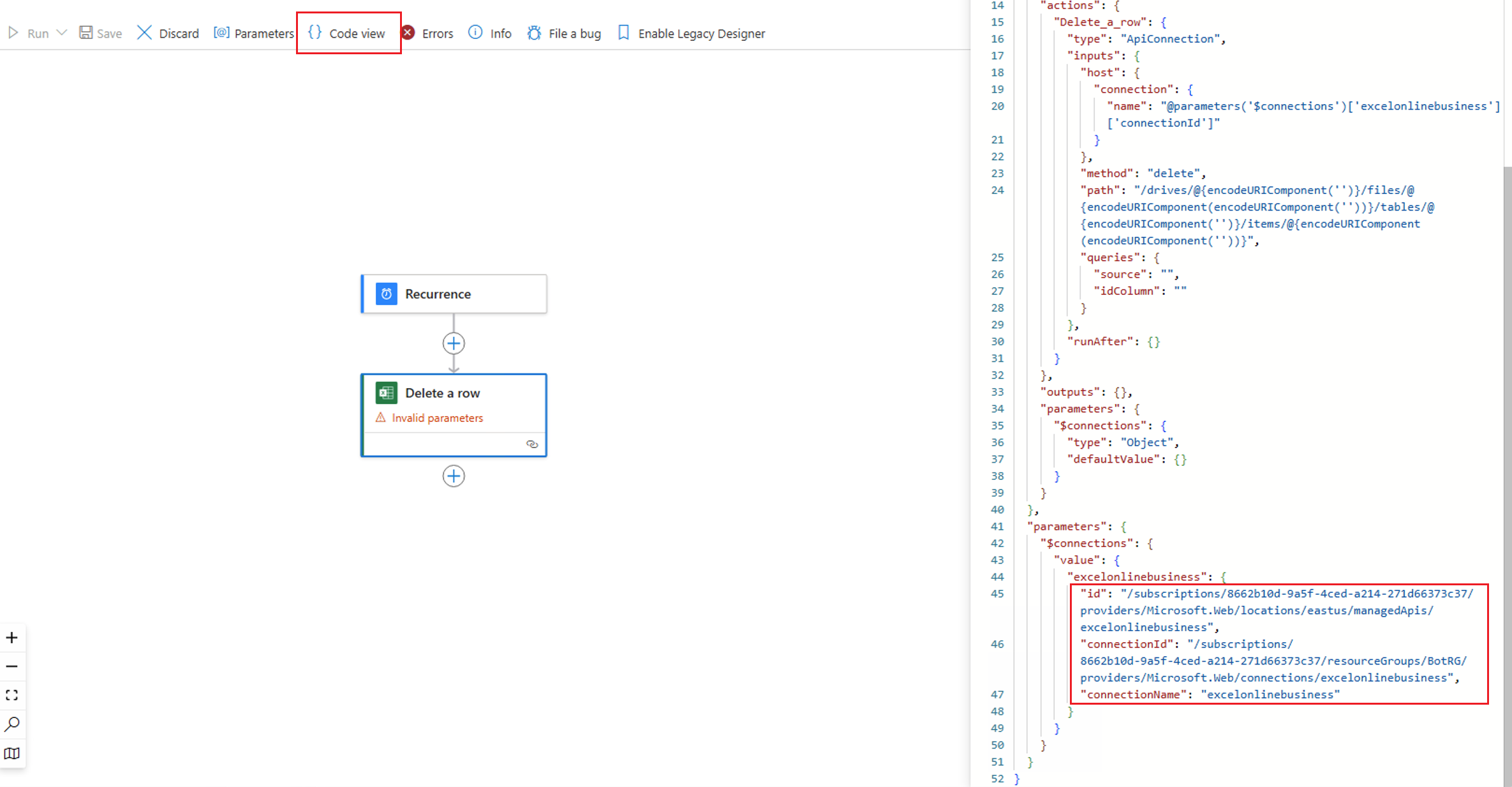
Click Code View, and copy the excelonlinebusiness connector details at the bottom.
Go to Logic App Code View on the left navigation panel, remove all existing contents and replace with below details
Logic App Code Template:
json{ "definition": { "$schema": "https://schema.management.azure.com/providers/Microsoft.Logic/schemas/2016-06-01/workflowdefinition.json#", "actions": { "Initialize_variable": { "inputs": { "variables": [ { "name": "retry_count", "type": "integer", "value": 2 } ] }, "runAfter": {}, "type": "InitializeVariable" }, "Until": { "actions": { "Update_Backup_Excel_in_Sharepoint": { "inputs": { "body": { "DataDTO": "@triggerBody()" }, "host": { "connection": { "name": "@parameters('$connections')['excelonlinebusiness']['connectionId']" } }, "method": "post", "path": "/officescripting/api/unattended/run/@{encodeURIComponent('b!jelDm24KskKEFXEQM-2yCtYDiQGJiplEgV7GYRixR1IcKTExav3_TZvC2oIKzUS2')}/@{encodeURIComponent(encodeURIComponent('01HY2CEV4D4FQXNU6RXZFI7ZTS7AZ7PWUC'))}", "queries": { "scriptId": "ms-officescript%3A%2F%2Fonedrive_business_itemlink%2F01FWW6BKBA2RP5G4XHYNDK4ZKHZOGQCK2H", "source": "https://microsoftapc.sharepoint.com/teams/WSDASteam" } }, "metadata": { "01HY2CEV4D4FQXNU6RXZFI7ZTS7AZ7PWUC": "/case assignment excel.xlsx", "01JAY4JNLKJDVHGCDHRVGIR44234CFQK5S": "/SME Intelligent Bot/ARR Aisa Identity Assignment Report.xlsx", "01JAY4JNMOYERB6YYPUVH3BECO3TU6Q35X": "/SME Intelligent Bot/ARR Aisa Identity Assignment Report.xlsx", "01R42N2CRS75HAX35NV5EZMFZ44EP7R264": "/Operation/1. Case Assignment/FY23_CaseAssignment_Bak.xlsx", "01R42N2CTZ6CP27LRVL5FLKBBQPCUDUXCO": "/Operation/1. Case Assignment/FY23_CaseAssignment.xlsx", "01YAXF2LMN2PQNWPXFHBGIWSCGVKW2DYYE": "/FY23 Case Assignment.xlsx" }, "runAfter": {}, "type": "ApiConnection" }, "on_failure": { "actions": { "Decrement_variable": { "inputs": { "name": "retry_count", "value": 1 }, "runAfter": { "Delay": [ "Succeeded" ] }, "type": "DecrementVariable" }, "Delay": { "inputs": { "interval": { "count": 10, "unit": "Second" } }, "runAfter": {}, "type": "Wait" } }, "runAfter": { "Update_Backup_Excel_in_Sharepoint": [ "Failed", "TimedOut" ] }, "type": "Scope" }, "on_success": { "actions": { "Decrement_variable_2": { "inputs": { "name": "retry_count", "value": 3 }, "runAfter": {}, "type": "DecrementVariable" } }, "runAfter": { "Update_Backup_Excel_in_Sharepoint": [ "Succeeded" ] }, "type": "Scope" } }, "expression": "@less(variables('retry_count'), 0)", "limit": { "count": 60, "timeout": "PT1H" }, "runAfter": { "Initialize_variable": [ "Succeeded" ] }, "type": "Until" } }, "contentVersion": "1.0.0.0", "outputs": {}, "parameters": { "$connections": { "defaultValue": {}, "type": "Object" } }, "triggers": { "manual": { "inputs": { "method": "POST", "schema": { "items": { "properties": { "command": { "type": "string" }, "data": { "properties": { "ARR/Unified/Premier/Pro?": { "type": "string" }, "Calling Country": { "type": "string" }, "Case ID": { "type": "string" }, "Case Owner": { "type": "string" }, "Case/Task": { "type": "string" }, "Is Outage?": { "type": "string" }, "Is S500?": { "type": "string" }, "Notes": { "type": "string" }, "Product/Topic": { "type": "string" }, "SLA Miss(Y/N)": { "type": "string" }, "Severity": { "type": "string" }, "Transfer Out?": { "type": "string" }, "Transfer in?": { "type": "string" } }, "type": "object" } }, "required": [ "data", "command" ], "type": "object" }, "type": "array" } }, "kind": "Http", "runtimeConfiguration": { "concurrency": { "runs": 1 } }, "type": "Request" } } }, "parameters": { "$connections": { "value": { "excelonlinebusiness": { "<your connector details here>":"" } } } } }Scroll down to the button and replace the excelonlinebusiness connector details we just copied. Click Save and go back to Logic App Designer.
Click on the "Update Backup Excel in Sharepoint", put your details about the Excel file and the Office Script like below.
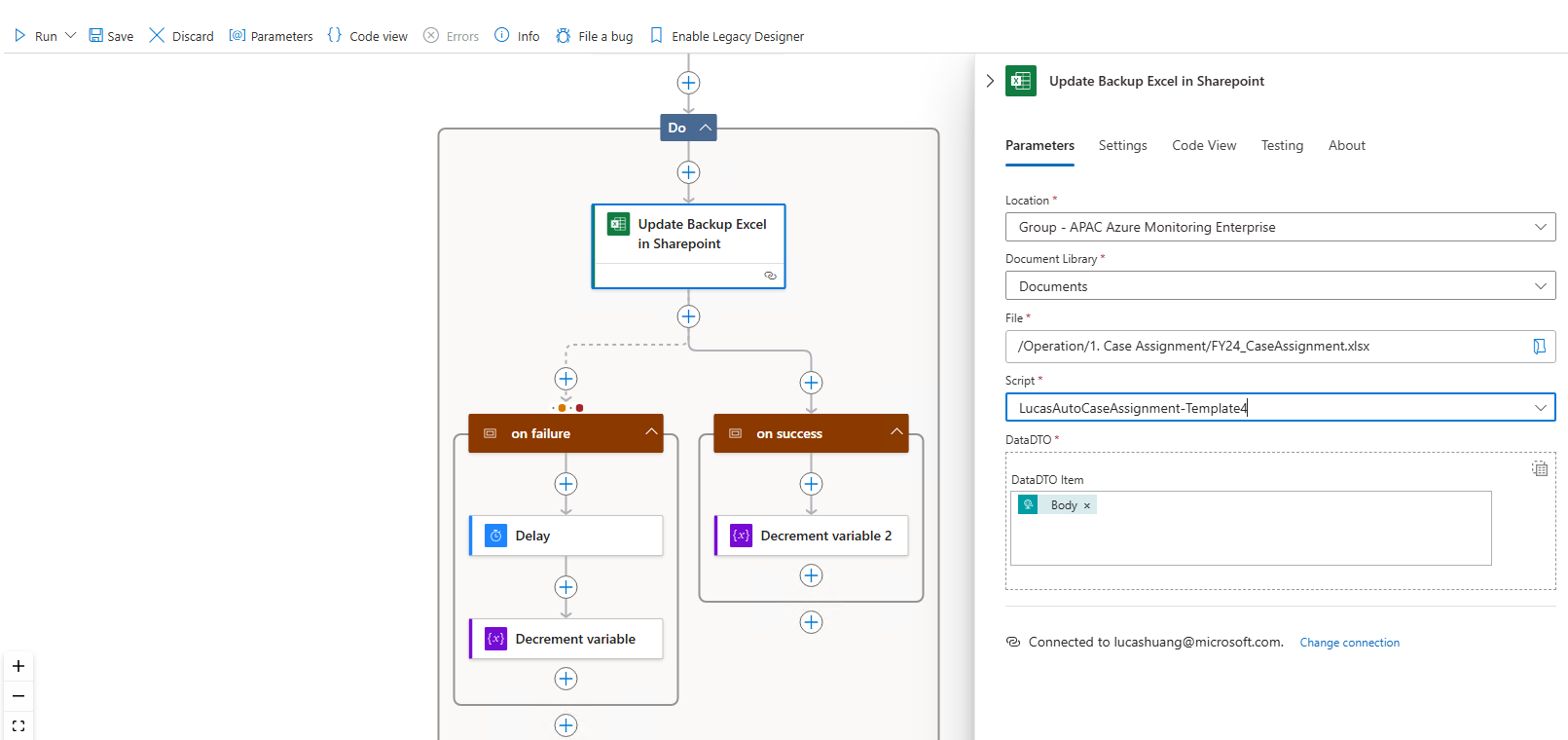
Click Save.
Click on the trigger and copy the URL, provide the URL to below "endpoint" of feature config.
Feature Config:
json
{
     "endpoint":"<Your Logic App Endpoint Url>"
}
Example payload Bot sends to your script
json
[
	{
		"command": "addOrUpdate",
		"data": {
			"CaseOrTask": "Case",
			"CaseId": "2406210030002325",
			"Service": "ResAccess | Cit Alliance Sup - UES",
			"Company": "",
			"Severity": "B",
			"CaseOwner": "Lucas Huang",
			"CaseOwnerAlias": "lucashuang",
			"Product": "Container insights",
			"ProductTopic": "Issue enabling container insights",
			"SupportTopic": "Issue enabling container insights",
			"Country": "Australia",
			"CountryCode": "AU",
			"Contract": "Australia",
			"ContractCountry": "Australia",
			"ContractCode": "AU",
			"IsTransferIn": "",
			"IsTransferOut": "",
			"Shift": "",
			"Comments": "",
			"Notes": "",
			"Queue": "MSaaS Azure Monitoring - Strategic",
			"AssignmentType": "Manually Assigned",
			"AssignmentsType": "Manually Assigned",
			"IsSLAMiss": "",
			"IsOutage": "",
			"Language": "en-US",
			"IsS500": "Y"
		}
	}
]