
Appearance
Bring Your Own Authentication
By default, the Bot uses a shared MSaaS authentication contributed by a single engineer to retrieve case-level data (e.g. the customer's email address for survey via CaseId mode, and history cases).
Since DfM switched to the TSE / MID account model (May 2026), this shared authentication has become unstable:
- TSE/MID forces a manual daily login, so the shared token expires every day.
- It is not possible for the single engineer to keep the credential available 24/7. Once it expires, every Team that relies on the Bot's default authentication is impacted at the same time, until the contributing engineer re-logs in.
Bring Your Own Authentication (BYOA) lets each Team contribute its own authentication. This insulates your Team from the instability of the shared credential, lets you leverage your own permissions against cases, and — when Teams opt in to sharing — builds a wider community that keeps the service stable for everyone.
Available Options
There are two BYOA tools. They solve the same overall problem, but they target different backends and unlock different capabilities.
| SMEBot MSaaS Token Fetcher (Must) | SMEBot Browser Extension (Optional) | |
|---|---|---|
| Backend it authenticates against | MSaaS API | DfM API |
| What it unlocks | All SMEBot features — POST-JIT data (e.g. customer email), the customer's full historical cases (used for survey), and queue-scanning / backlog features (e.g. SLA notification). | POST-JIT data only (e.g. customer email). |
| Shareable to other Teams | Opt in → your token can be reused by other Teams for read-only MSaaS calls, and your Team can use tokens shared by others, which builds a wider community that keeps the service stable for everyone. Opt out (default) → only your Main Team members can use your token, and you cannot use tokens from other Teams. | No — the Cookie is bound only to the Team(s) the contributor selected. |
| Stability against TSE/MID daily login | More stable; runs as a background .exe, no browser tab required. | Depends on the contributor keeping the browser open and visiting DfM regularly. |
| Recommendation | This is a MUST for using all features now. (Survey, SLA notification, etc.). | Keep using it if you already have it set up — and we still recommend installing the Fetcher alongside it, because most features require MSaaS access. |
WARNING
- If you opted in to sharing your MSaaS Token when onboarding the Token Fetcher, your Team may fall back to another Team's shared credential — but only when your own token has expired. As long as your own token is valid, the Bot always uses it first.
- When that fallback happens, the customer's email address may fail to load via CaseId, because the borrowed credential may not have direct permission to access POST-JIT data.
- To avoid this fallback, keep the SMEBot Browser Extension enabled alongside the Fetcher. When both are available, the Bot prefers the DfM Cookie over the MSaaS Token for retrieving the customer's email address via CaseId, because the Cookie has a longer lifecycle and does not need to be refreshed hourly.
How It Works
Regardless of which tool you use, the flow is the same:
- The tool runs on your machine and periodically picks up the latest credential (MSaaS MID Token or DfM Cookie).
- With your consent, the credential is sent to the SMEBot backend and bound to the Team(s) you selected.
- When main team users in those Team(s) trigger Bot features that need case-level data, the Bot uses your credential.
- This isolates your Team from the instability of the shared TSE/MID credential, and uses your own permissions to access case data.
WARNING
- You must have a
TArole in the Bot to finish the tool binding. - For each Team, one user enabling a tool is enough. No harm for more, can be more stable.
SMEBot MSaaS Token Fetcher (Must)
The Token Fetcher is a small Windows .exe that runs on your machine, retrieves an MSaaS MID Token (same approach as Casebuddy), and syncs it to the SMEBot backend.
Because it authenticates against MSaaS (not DfM), it unlocks the full set of case-level capabilities the Bot needs — POST-JIT data such as customer email, the customer's full historical cases, and queue-scanning features such as SLA notification.
Install the SMEBot MSaaS Token Fetcher
Download the executable from here (v1.0.2-20260616).
Enable the SMEBot MSaaS Token Fetcher
Double-click the
SMEBotMSaaSTokenFetcher.exeto launch the Fetcher.On first launch, it prompts you to bind Teams. Select the Team(s) you want to bind your token with.
Decide whether to consent to sharing your token to back the Bot's infrastructure (default opt-out).
To change the bound Teams or your sharing preference later, run:
cmdSMEBotFetchMSaaSToken.exe --reconfigure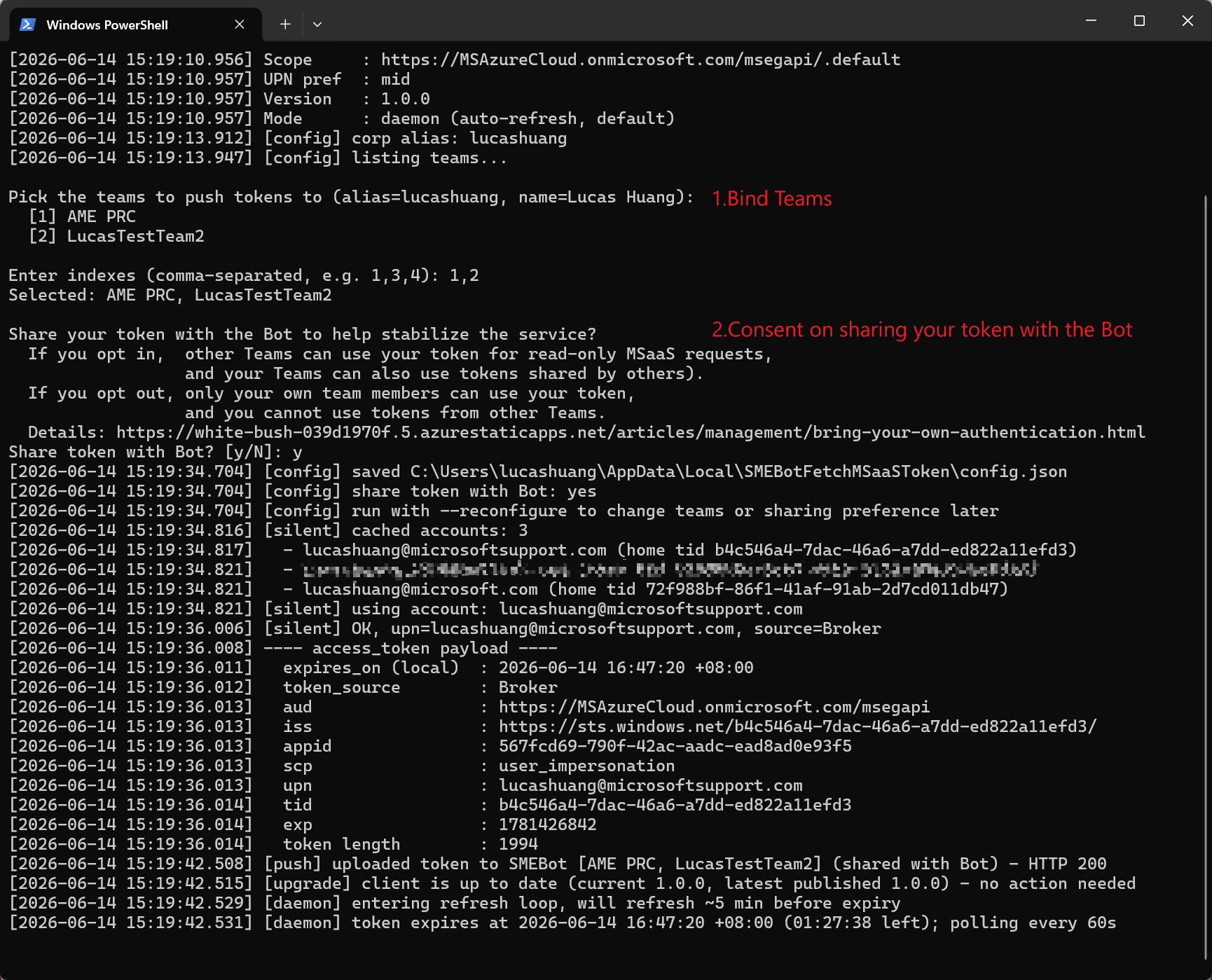
SMEBot Browser Extension(Optional)
The Browser Extension captures your DfM Cookie and syncs it to the SMEBot backend. It authenticates against DfM (not MSaaS), so its scope is limited to what DfM exposes — primarily POST-JIT data such as customer email. As long as the contributing user has DfM permission to view the case, no JIT is needed.
It does not unlock MSaaS-only capabilities such as the customer's full historical cases, and the Cookie is bound only to the Team(s) the contributor selected (no cross-Team sharing).
If your Team has already enabled the extension, keep using it — ideally alongside the Token Fetcher.
Install the SMEBot Browser Extension
The extension is published on Edge Add-ons. Install the SMEBot Extension on Edge Add-ons.
Enable the Extension
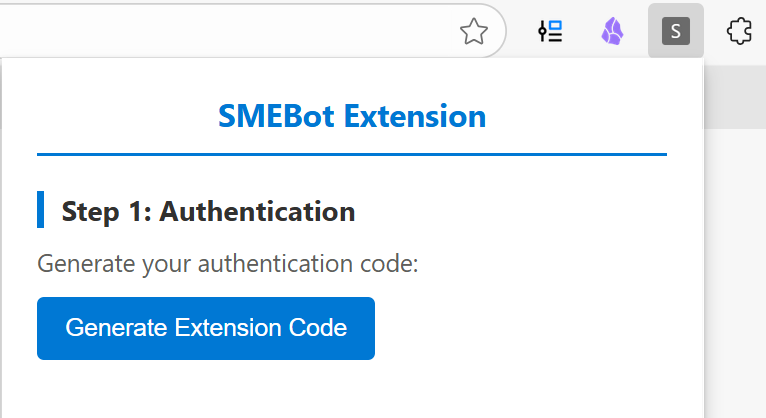
Click on the extension, then click Generate Extension Code.
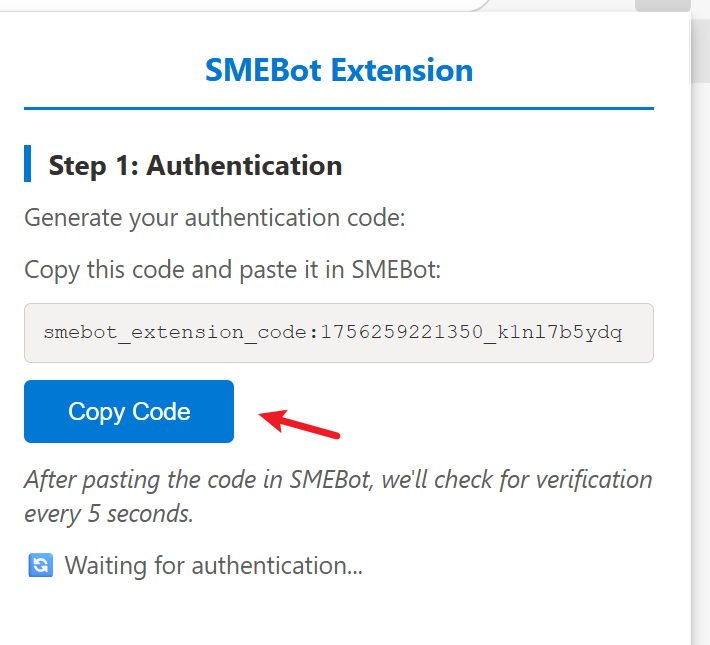
Copy the code and send it to the SME Intelligent Bot privately.

Once your identity is verified, go back to the extension — it will automatically check whether the DfM Cookie is present in your browser. If not, log into DfM once and retry.
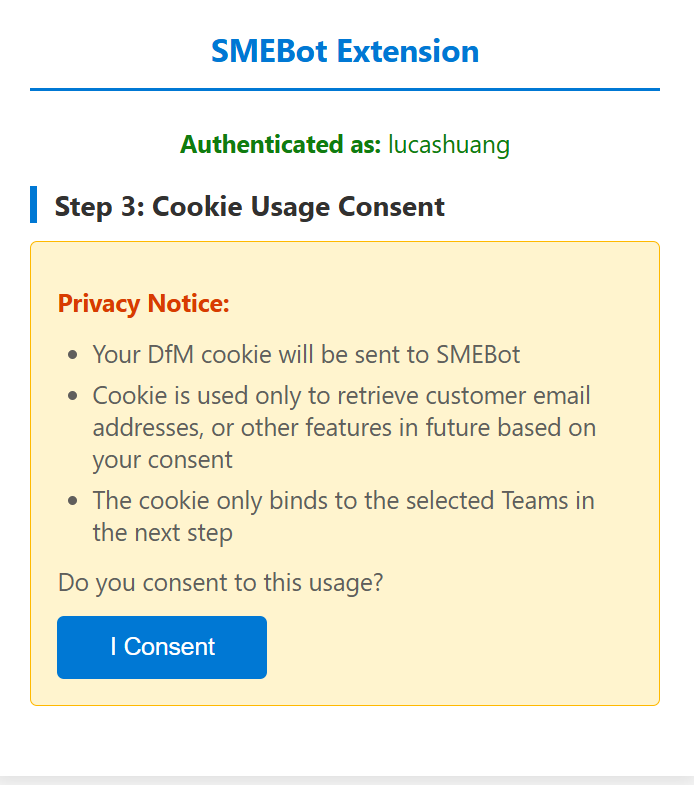
Review the consent page. If you agree, give consent to send your DfM Cookie to the SMEBot backend.
Select the Team(s) you are in and want to bind your Cookie with.
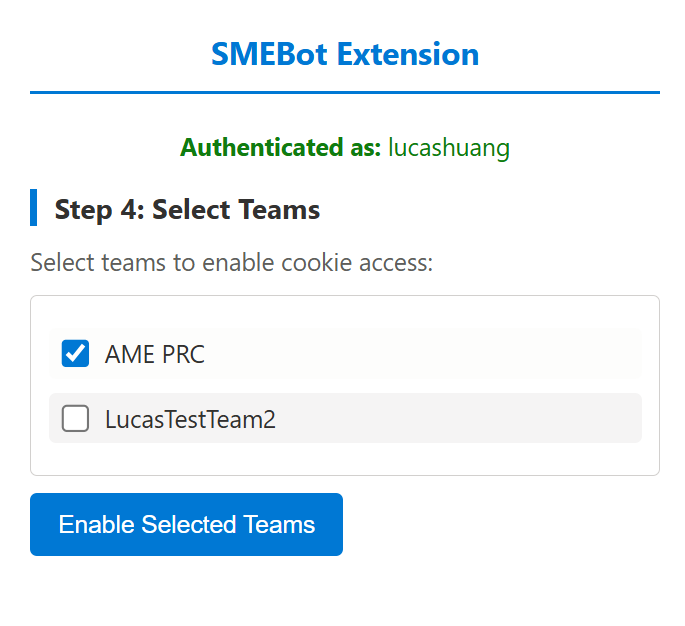
Done. A background job will keep the cookie up to date automatically.
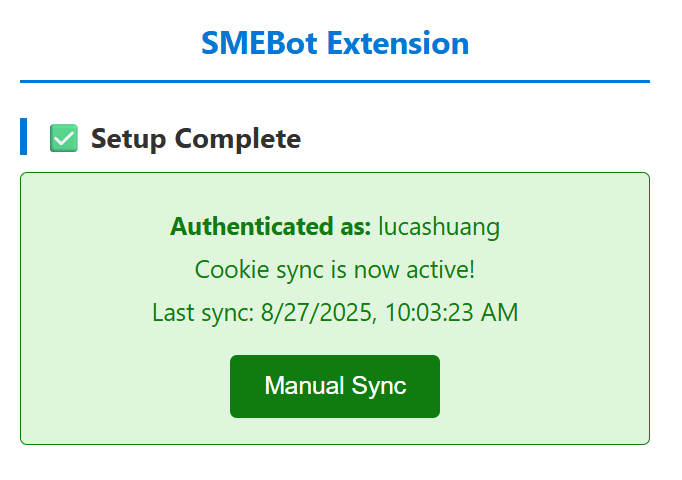
Verify by accessing survey detail via CaseId mode.
FAQ
1. Why do I put so much emphasis on the customer's email address?
Most of us are used to querying survey or historical-case information by CaseId. However, the customer's email address is POST-JIT data: without JIT, you cannot derive it from a CaseId alone. So you have two practical paths:
- Query survey by customer email directly (Email mode), or
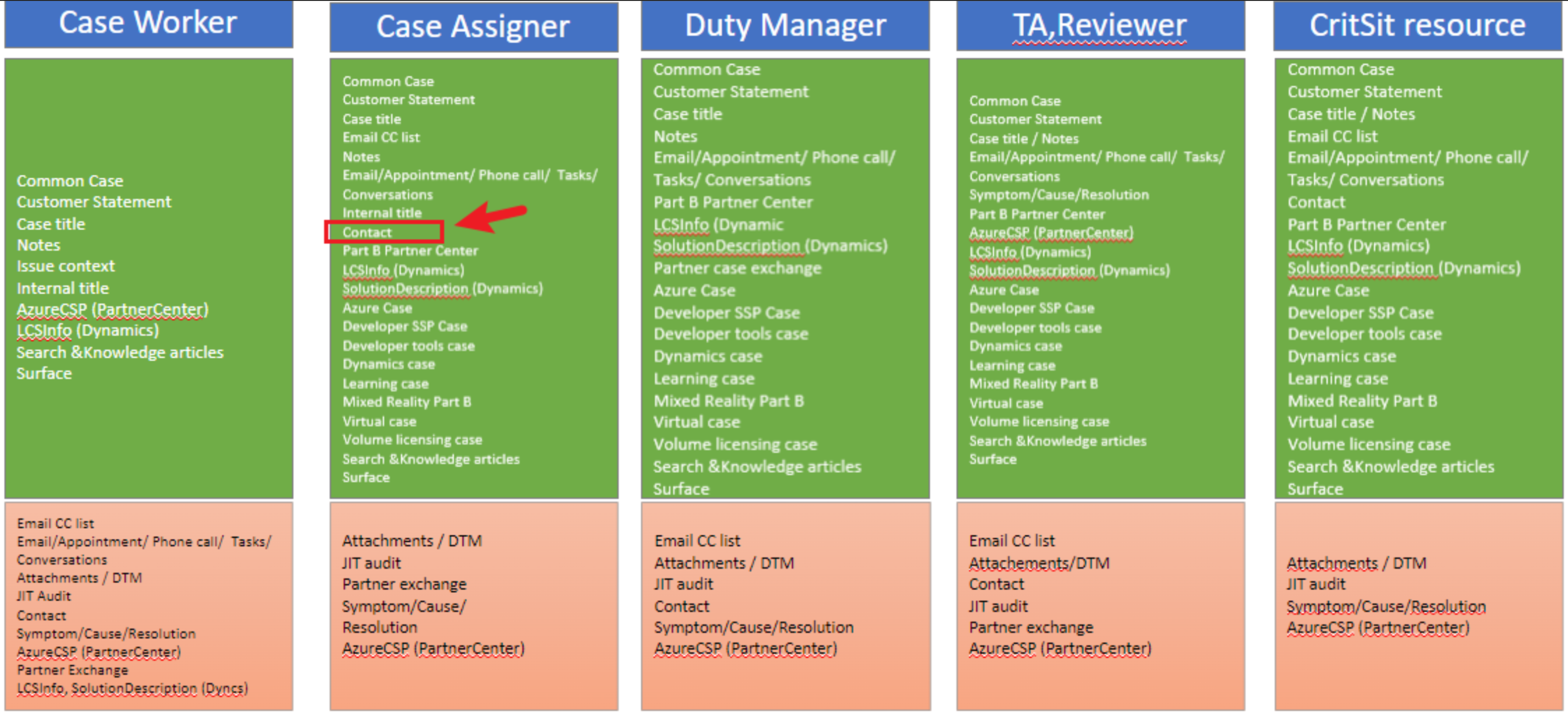
- Stick with CaseId mode, and make sure the contributing token / cookie either already has JIT, or belongs to a user with at least the
Case Assignerrole — which lets them see the customer email without JIT. See RBAC role in DfM, and raise BTS ticket to change your role if needed.
2. Which one should I use — Token Fetcher or Browser Extension?
Use the Token Fetcher for new setups. It authenticates against MSaaS, so it covers POST-JIT data (e.g. customer email), MSaaS-only data (e.g. the customer's full historical cases), and queue-scanning features(SLA notification, etc), and it supports opt-in sharing across Teams.
The Browser Extension only authenticates against DfM, so its scope is POST-JIT data only. If your Team has already enabled it, keep using it alongside the Fetcher.
3. Do I need to install both?
Not required — the Token Fetcher alone is enough to unlock all features. However, we recommend running the Browser Extension alongside the Fetcher: when both are present, the Bot prefers the DfM Cookie for retrieving the customer's email address via CaseId, which avoids the cross-Team fallback edge case described in the warning above.
4. Why does the Bot use MSaaS to retrieve a customer's historical cases instead of calling DfM directly?
We tested the DfM API for this use case and found its results are not as accurate as MSaaS. MSaaS remains the source of truth for customer case history, so the Token Fetcher (which authenticates against MSaaS) is the path the Bot relies on.
5. How do I completely uninstall the Browser Extension?
- Uninstall the Browser Extension from Edge so that it stops sending the DfM Cookie to the SMEBot backend.
- Contact smebotdl@microsoft.com to ask the team to delete the Cookie retained on the backend.
6. How frequently does the auth sync happen?
- Token Fetcher: runs as a background process and refreshes the MID Token hourly. Mannual interaction is still needed daily.
- Browser Extension: a background job watches the DfM Cookie in your browser. Whenever the Cookie changes (which usually happens automatically when you open DfM), the extension syncs the new Cookie to SMEBot. This means you need to keep your browser open and visit DfM regularly.
7. Why is the shared / default authentication unstable now?
As of May 2026, DfM has switched to the TSE / MID account model, which forces a manual daily login. The shared credential therefore expires daily, and every Team relying on it is affected until the contributing engineer re-logs in. BYOA lets each Team avoid this single point of failure.
8. What happens if my BYOA sync fails?
- If your BYOA credential expires and is not refreshed in time, the Bot falls back to the default shared authentication. This may cause the same instability and permission issues described above, and CaseId-mode survey lookups may fail.
- To recover, re-run the Token Fetcher (or open DfM in your browser if you use the extension) so that a fresh credential is synced.